
Interested In Learning More?
To find out how LegacyMaker can revolutionize your life and business and unlock your mental freedom, enter your information below and a member of our team will be in contact with you!
By providing your information you are consenting to the collection and use of your data in accordance with our Terms of Service and Privacy Policy.
Limited Time – Save BIG With The 'Founders Plan'!
[Upper Toolbar] How To Access Your Compositions
Friday, November 03, 2023
In this tutorial, I’ll show you how to access your Compositions via the Upper Toolbar.
Objectives:
- Locate the Compositions icon in the Upper Toolbar
- Understand file elements
- Access content
- Locate file data
- Reveal additional file actions
Prior to getting started, you will need to have the following:
- An active LegacyMaker account
- A composed project
- An internet connection
Step by Step Walkthrough:
STEP #1:
From your dashboard, click the file icon on the upper toolbar to open your Compositions folder.

STEP #2:
Here you will find a chronological list of your Compositions, excluding projects that have been composed into the Reader (these can be accessed from the Reader tab within your Project Panel).

STEP #3:
The action icon on the left of each file listing corresponds with the file type denoted on the right. For example, TTS audio files will have a play button, while .docx and .pdf files will have a download button.

STEP #4:
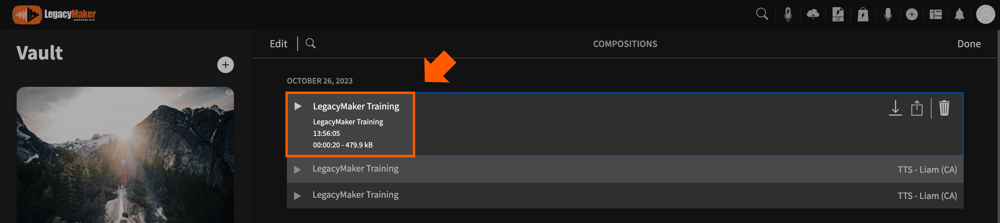
Click on a file to reveal additional file data such as the timestamp, recording duration, and file size.
STEP #5:
Here you will also find options to Download, Share, or Trash the file.

Congratulations, you now know how to access your Compositions Folder via the Upper Toolbar. For more guidance on this topic, be sure to check out these related tutorials:
If you have any additional questions, feel free to contact our Support Team at support@legacymaker.co.
RELATED POSTS

This step-by-step tutorial will show you how quick and easy it is to capture your ideas in an organized manner using the Legacy recorder.

Adding content to a folder can be done using the Editor or the Navigation page, but keep in mind that some of the AI-assisted features are not available within Navigation. In this tutorial, I’ll show you how to add content to your project folders using the Editor.

Once you have a project started, there are two ways you can add folders: using the Editor or using Navigation. Both options achieve the same ultimate result, but offer two unique visual experiences depending on your preference. In this tutorial, I’ll show you how to add folders using Navigation, which operates in more of a hierarchical format.
Once you have a project started, there are two ways you can add folders: using the Editor or using Navigation. Both options achieve the same ultimate result, but offer two unique user experiences depending on your preference. In this tutorial, I’ll show you how to add folders using the Editor.
Transforming an idea in your head into a working project shouldn’t be complicated. This step-by-step tutorial will show you exactly how to get started building your first project.
© 2024 ILUVMFG Media, LLC. All Rights Reserved.
PO Box 7846 Bonney Lake, WA 98391