
Interested In Learning More?
To find out how LegacyMaker can revolutionize your life and business and unlock your mental freedom, enter your information below and a member of our team will be in contact with you!
By providing your information you are consenting to the collection and use of your data in accordance with our Terms of Service and Privacy Policy.
Limited Time – Save BIG With The 'Founders Plan'!
[Projects] How To Add Content To A Folder Using The Editor
Monday, October 09, 2023

With your project framework in place, you’re ready to start adding content to your folders. This can be done using the Editor or the Navigation page, but keep in mind that some of the AI-assisted features are not available within Navigation. In this tutorial, I’ll show you how to add content to your project folders using the Editor.
Objectives:
- Navigate to the Editor
- Open the Quick Nav menu
- Use the In-Line Recorder
- Add text boxes, headings, attachments, images, video URLs, and uploads
- Generate content using the AI prompt box
- Edit AI-generated content
Prior to getting started, you will need to have the following:
- An active LegacyMaker account
- An existing project with folders
- An internet connection
Step by Step Walkthrough:
STEP #1:
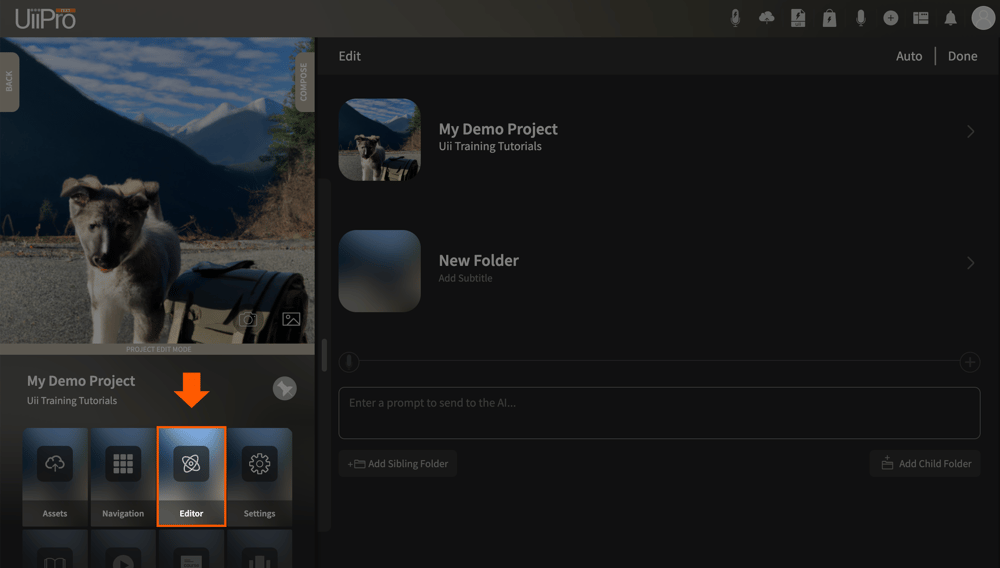
When you open a project, the default screen will be the Editor. If you’ve navigated to another page within your project, click the Editor tab on the left project panel to return.
STEP #2:
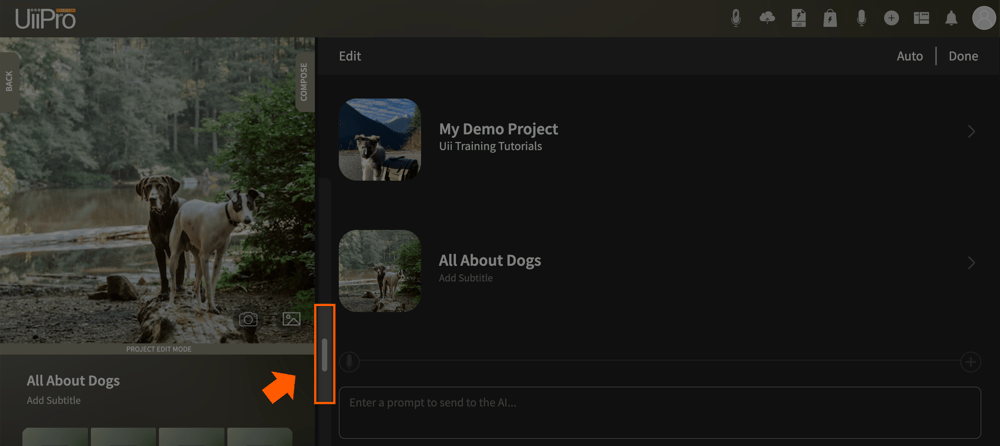
Navigate to the folder you wish to add content to. For larger projects, you can click the vertical grey bar on the left side of the Editor to open the Quick Nav menu.
STEP #3:
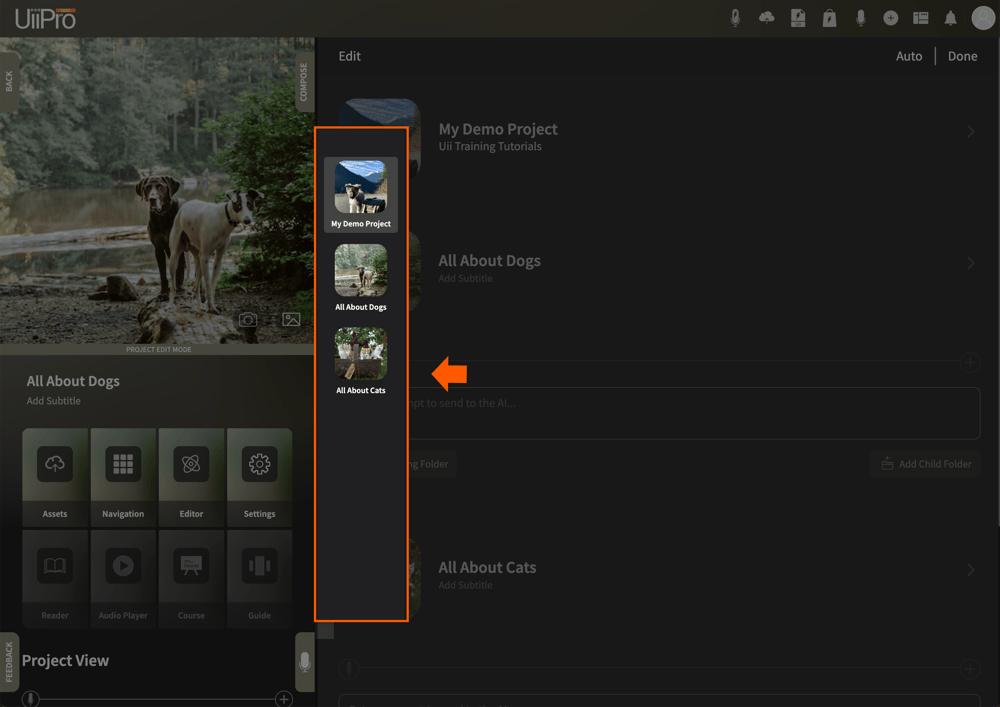
Select a folder from the Quick Nav menu. The Editor will automatically jump to this point in your project.
STEP #4:
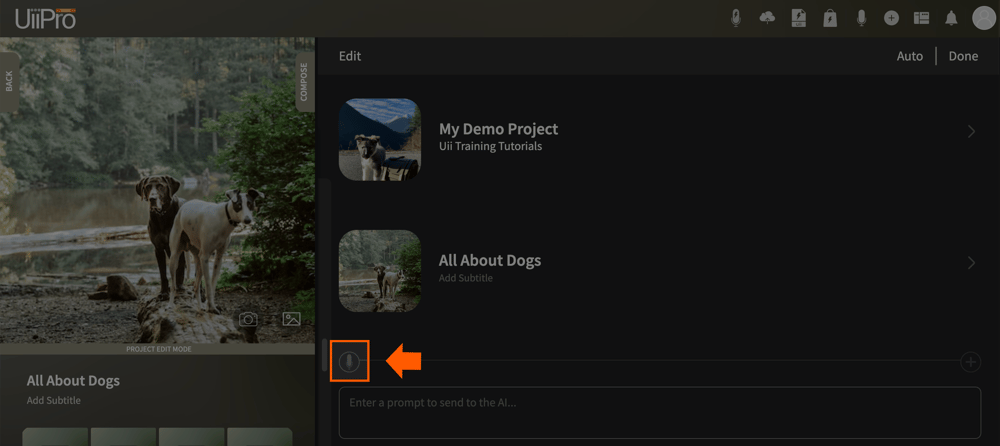
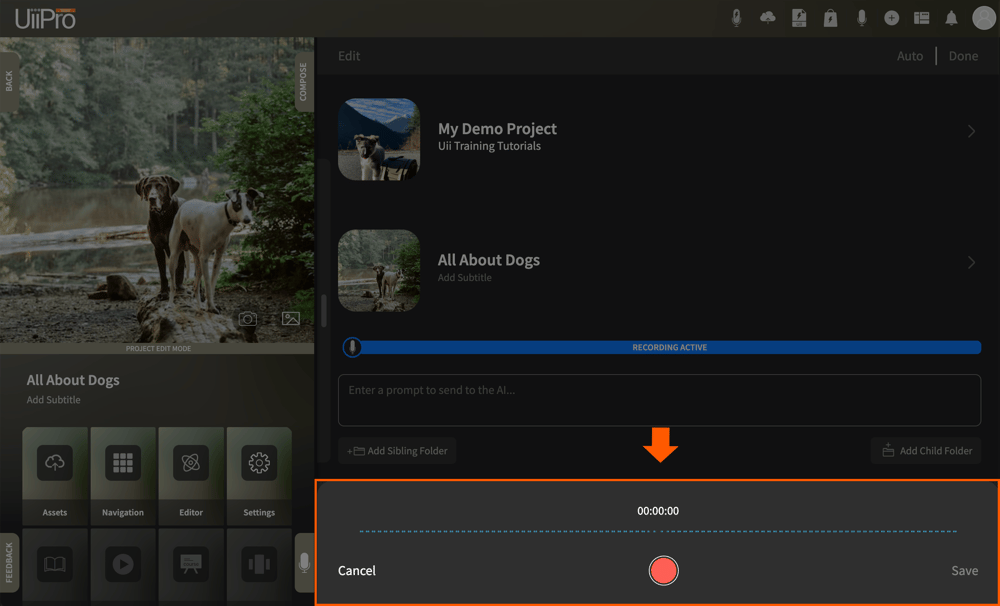
To add a new recording to your project, click the microphone icon below your folder.
STEP #5:
Use the recorder controls to capture your ideas directly within your selected folder.
STEP #6:
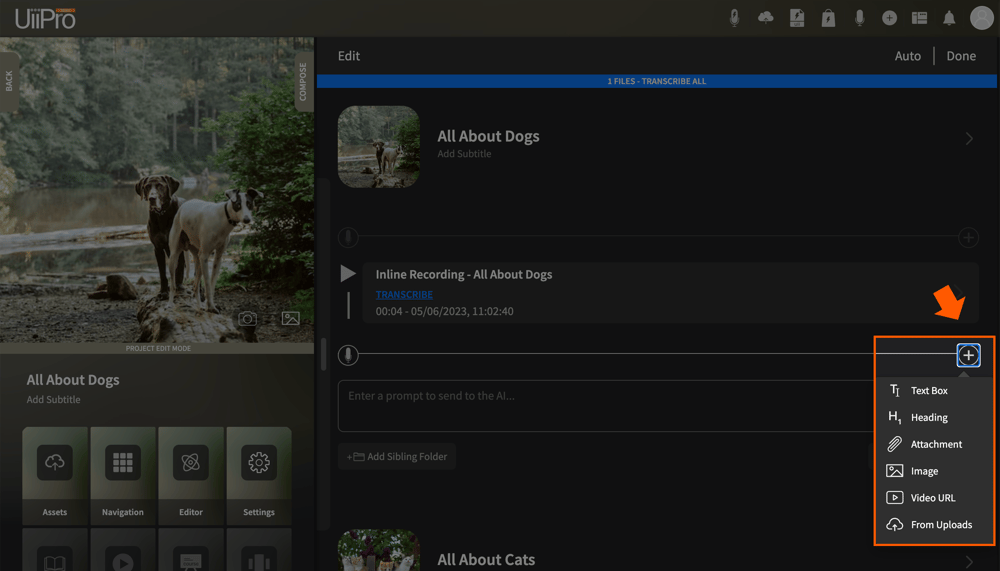
The plus icon on the right will allow you to add Text Boxes, Headings, Attachments, Images, Video URLs, or files from your Uploads folder.
STEP #7:
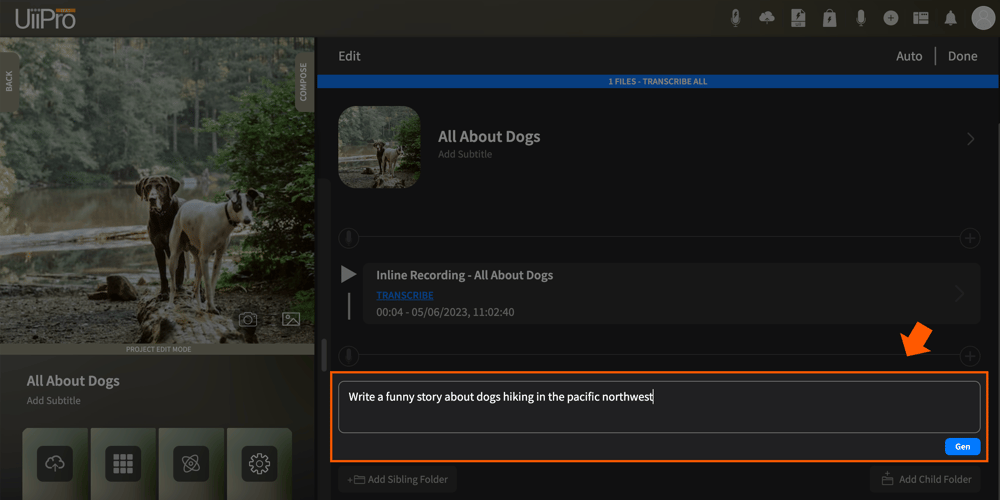
Need some inspiration to help get the creativity flowing? Type a prompt into the prompt box and click the blue Gen button – the AI will automatically generate content for you!
STEP #8:
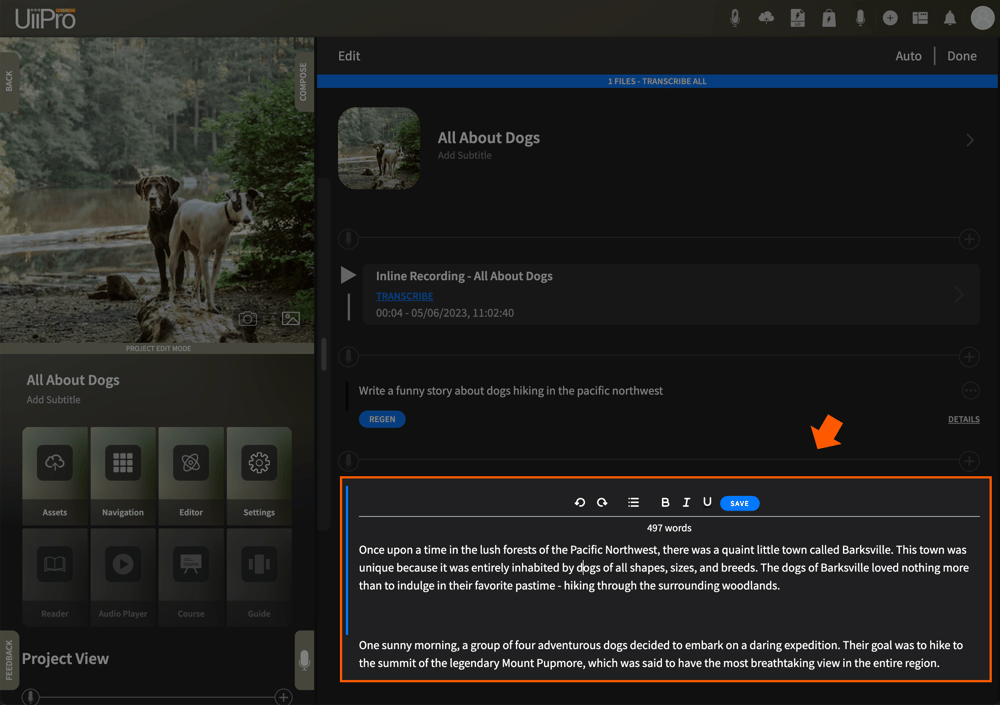
Your AI-generated content will load below your prompt as a text element. Double click anywhere within the text to enable editing, and be sure to click Save when you’re done!
Congratulations, you now know how to add content to your folders using the Editor. For more guidance on this topic, be sure to check out these related tutorials:
If you have any additional questions, please contact our Support Team at support@legacymaker.co.
RELATED POSTS

LegacyMaker’s instant transcription feature makes it quick and easy to convert your raw audio content into an editable text format, and this step-by-step tutorial will show you exactly how.

This step-by-step tutorial will show you how quick and easy it is to capture your ideas in an organized manner using the Legacy recorder.

Once you have a project started, there are two ways you can add folders: using the Editor or using Navigation. Both options achieve the same ultimate result, but offer two unique visual experiences depending on your preference. In this tutorial, I’ll show you how to add folders using Navigation, which operates in more of a hierarchical format.
Once you have a project started, there are two ways you can add folders: using the Editor or using Navigation. Both options achieve the same ultimate result, but offer two unique user experiences depending on your preference. In this tutorial, I’ll show you how to add folders using the Editor.
Transforming an idea in your head into a working project shouldn’t be complicated. This step-by-step tutorial will show you exactly how to get started building your first project.
© 2024 ILUVMFG Media, LLC. All Rights Reserved.
PO Box 7846 Bonney Lake, WA 98391